Read the descriptive transcript
Download the transcript
The Truth Calculator Training Webinar Series — Episode 1
QXA-WEB-TTC-001 | Descriptive transcript from source R1.13
Public training transcript · QXA-WEB-TTC-001
00:00:00 — Opening
[Theme music. Animated qX Alliance identity and Got Proof message. A thank-you screen counts down before the presenter begins.]
00:01:04 — Welcome to qX Alliance (B02_01)
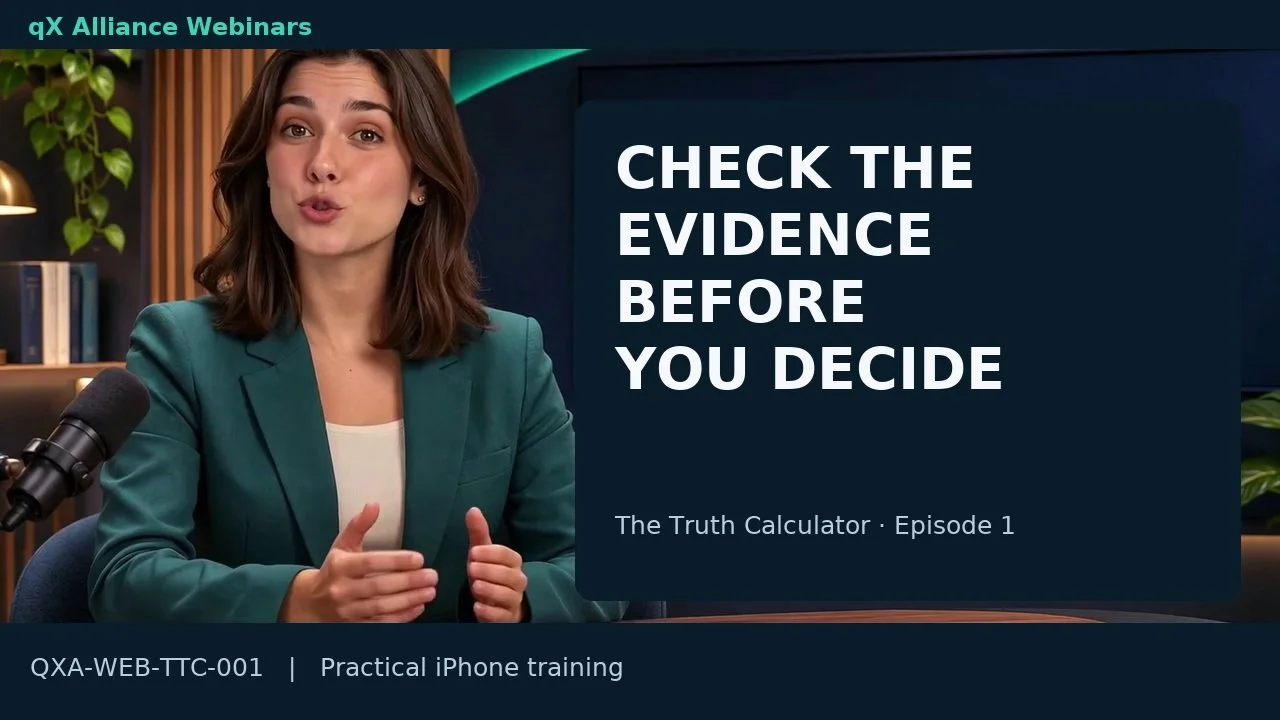
[The approved presenter speaks in the qX Alliance studio, with synchronized lip movements.]
Welcome to qX Alliance. Thank you for joining us. Make yourself comfortable, and let’s get started. Convened by BEYONDx Advisors, the Alliance brings people together to examine evidence behind decisions involving AI, autonomy and practical innovation. Our evolving Charter emphasizes human responsibility, respect for sovereignty, and clear ownership of ideas and information. Today, we’ll bring that approach into everyday life, with a simple way to examine a claim before you rely on it.
00:01:37 — Pre-recorded training (B03_01)
[The approved presenter speaks in the qX Alliance studio, with synchronized lip movements.]
I’m here to guide you through this pre-recorded training. You can pause and practice at your own pace. First, let’s look at why checking the record matters.
00:01:47 — Why the record matters (B04_01)
[The approved presenter speaks in the qX Alliance studio, with synchronized lip movements.]
In June twenty twenty-six, the Federal Trade Commission reported about sixteen billion dollars in consumer fraud losses for twenty twenty-five. Those are reported losses across many kinds of fraud. They illustrate the stakes; they do not measure what this app can prevent.
00:02:04 — A convincing message is not enough (B05_01)
[The approved presenter speaks in the qX Alliance studio, with synchronized lip movements.]
In a twenty nineteen case, the U.S. Justice Department announced a guilty plea in an email impersonation scheme that induced two companies to transfer more than one hundred million dollars. Its account also described forged supporting documents. A convincing message deserves an independent check. For a payment request, confirm the recipient through a trusted channel outside the message. Organizing documents alone cannot establish who sent them.
00:02:35 — When the promise and policy disagree (B06_01)
[The approved presenter speaks in the qX Alliance studio, with synchronized lip movements.]
In Moffatt versus Air Canada, a twenty twenty-four tribunal decision described a chatbot’s refund guidance that conflicted with the airline’s policy. The tribunal found the customer’s reliance reasonable and awarded damages. The lesson is not to blame the customer. It is to preserve what was said, compare relevant records, and ask for clarification when they disagree. We are illustrating a review habit, not claiming this app would have changed that outcome.
00:03:04 — Start with one everyday claim (B07_01)
[The approved presenter speaks in the qX Alliance studio, with synchronized lip movements.]
Today, we’ll start with a much smaller question: why is an invoice sixty dollars higher than the quote? Before your next payment, refund follow-up or business commitment, choose one claim, gather its records and identify what still needs confirmation. The Truth Calculator can help you organize that evidence-readiness review and keep a record. Let’s build your first useful review together.
00:03:30 — Show the useful outcome (S02_01)
[Authentic Build 11 visual E04: Genuine Build 11 exported PDF · page 1.]
Here is the record we'll work toward: one claim, a reviewed passage, the evidence list, and the review result. This PDF does not attach the original files; keep those separately. We'll complete this invoice example, reopen our work, and inspect the PDF before saving it.
00:03:48 — Set the boundary (S03_01)
[The approved presenter speaks in the qX Alliance studio, with synchronized lip movements.]
The Truth Calculator helps you organize and review evidence readiness. It does not decide that a claim is true or false, authenticate a document, or replace your judgment. An important question is: what do the records actually support, and what is still missing?
00:04:05 — Set the boundary (S03_02)
[Authentic Build 11 visual E06: Editorial teaching card.]
We'll practice four things: writing a specific claim, adding and reviewing records, understanding the result, and keeping a record. All names, amounts, and documents in this lesson are fictional. Use these practice files while learning, so you can concentrate on the steps without putting private information on screen.
00:04:27 — Read the invoice example (S04_01)
[Authentic Build 11 visual E07: Fictional practice document.]
Morgan received a two-hundred-forty-dollar quote for a door repair.
00:04:32 — Read the invoice example (S04_02)
[Authentic Build 11 visual E08: Fictional practice document.]
The invoice is three hundred dollars, including sixty dollars for additional hardware.
00:04:38 — Read the invoice example (S04_03)
[Authentic Build 11 visual E09: Fictional practice document.]
A short email says, Please proceed with the repair. Our objective is to identify the record that could explain the extra charge. Before asking the vendor a question, we'll separate what these documents say from what we are assuming.
00:04:52 — Start one clear claim (S05_01)
[Authentic Build 11 visual E10: Authentic simulator screenshot.]
From the Home screen, tap Start a New Truth Check.
00:04:56 — Start one clear claim (S05_02)
[Authentic Build 11 visual E11: Authentic Overview still · from fresh-check capture.]
On Overview, choose Enter a claim.
00:05:00 — Start one clear claim (S05_03)
[Authentic Build 11 visual E12: Authentic simulator screenshot.]
We'll enter this claim: Cedar Lane Repairs' three-hundred-dollar invoice reflects the work and price Morgan Vale approved. A specific claim gives us something we can compare with the records. Avoid putting several different disagreements into one sentence. Read the claim once before continuing. Check the name, amount, and what you are trying to establish.
00:05:24 — Start one clear claim (S05_04)
[Authentic Build 11 visual E13: Authentic simulator screenshot.]
Then choose Continue to Evidence. If you're following along, pause here and enter the same fictional claim. Resume when you are ready to bring in the records.
00:05:35 — Add and inspect the records (S06_01)
[Authentic Build 11 visual E14: Original recording · edited excerpt.]
We have three source documents: the quote, the invoice, and the email. Tap Add Evidence and choose Files. Import A01, A02, and A03, checking each filename as you go. As you add the files, keep an eye on their names. The quote, invoice, and email serve different purposes. The quote records the original price. The invoice records the amount being requested. The email records what was said about proceeding. Keeping all three gives you something concrete to compare when you review the added charge. You can pause the video here while you import your practice files.
00:06:20 — Add and inspect the records (S06_02)
[Authentic Build 11 visual E15: Original recording · edited excerpt.]
Next, use Text to add the full supplied email excerpt, including its date, sender, recipient, and wording. Keep its date, sender, and full wording together so the passage has context.
00:06:35 — Add and inspect the records (S06_03)
[Authentic Build 11 visual E16: Original recording · edited excerpt.]
Choose Save Evidence. This leaves four evidence items: the three files and the entered text. The email appears in both forms so we can review its exact words. Adding a file is not the same as reviewing a passage or establishing that it supports the claim. Our next step is to make that review explicit.
00:06:58 — Review support and gaps (S07_01)
[Authentic Build 11 visual E17: Authentic simulator screenshot.]
Open Create receipt and use this exact passage from the email: Please proceed with the repair. In this app, a reviewed receipt connects a selected source passage to the claim; it is different from a shop's purchase receipt.
00:07:14 — Review support and gaps (S07_02)
[Authentic Build 11 visual E18: Original recording · edited excerpt.]
Mark this passage Unresolved, then choose Save Receipt. The wording authorizes proceeding with a repair, but does not name the extra hardware or its price. Unresolved keeps the question open until you find evidence addressing the added hardware and price.
00:07:34 — Review support and gaps (S07_03)
[Authentic Build 11 visual E19: Editorial teaching card.]
Pause and decide what record you would ask for next. A dated change approval would help. That is our interpretation of the fictional documents. A missing record is a reason to ask a focused question; it is not proof that anyone acted improperly.
00:07:50 — Run and explain the result (S08_01)
[Authentic Build 11 visual E20: Original recording · edited excerpt.]
Choose Continue to Review. Here we have four evidence items and one unresolved receipt. Those counts describe the review entered so far; they do not establish that nothing is missing. Tap Run Readiness Check. Focus on the evidence and the unresolved passage as the check runs. Keep the missing approval in mind when reading the result.
00:08:15 — Run and explain the result (S08_02)
[Authentic Build 11 visual E21: Authentic simulator screenshot.]
This example shows forty out of one hundred, Evidence organizing, with seven remaining actions and Verify First.
00:08:23 — Run and explain the result (S08_03)
[Authentic Build 11 visual E22: Authentic simulator screenshot.]
Read the explanation and next actions before proceeding. The index concerns evidence readiness. It is not a forty percent probability that the claim is true. Don't add unrelated documents simply to change a number. Focus on the missing context and on what the records actually support.
00:08:42 — Choose the next human action (S09_01)
[The approved presenter speaks in the qX Alliance studio, with synchronized lip movements.]
For this example, our next question is specific: is there a dated record approving the additional hardware and price? The app has helped organize the review; deciding what to request remains our responsibility. We can revisit the question when more information arrives. We are not deciding who owes money, or whether anyone has done something wrong.
00:09:04 — Reopen saved work (S10_01)
[Authentic Build 11 visual E24: Original recording · edited excerpt.]
Let's return to this work. Open History and use Resume Truth Check for the invoice review. The History list does not show the claim text, so confirm the claim and its evidence after resuming. Our captured invoice review still shows forty out of one hundred with seven remaining actions. Reopening did not change that result. Use the claim and the available records to identify the review you want to resume. In this example, look for the invoice and the original forty-point result. Check that you have the correct saved review before you continue to its packet. This keeps the invoice example separate from the refund exercise coming next.
00:09:49 — Reopen saved work (S10_02)
[Authentic Build 11 visual E25: Authentic simulator screenshot.]
Saved work in the app and an exported PDF are different records. We'll prepare the PDF next. If your screen differs, pause and compare the app version and the steps you've completed before proceeding.
00:10:03 — Prepare the PDF record (S11_01)
[Authentic Build 11 visual E26: Original recording · edited excerpt.]
Choose Create or Export Packet. Opening this screen prepares the record. In this example, readiness changes from forty with seven remaining actions to forty-two with six. That reflects preparation of the evidence package; it does not add factual support for the claim. Packet preparation changes the record's readiness state without adding support for the claim.
00:10:28 — Prepare the PDF record (S11_02)
[Authentic Build 11 visual E27: Authentic simulator screenshot.]
Choose Full Truth Check Audit Packet. Check the claim, reviewed passage, four evidence references, and review history. Original evidence files are not attached.
00:10:40 — Prepare the PDF record (S11_03)
[Authentic Build 11 visual E28: Original recording · edited excerpt.]
Open Preview PDF and read the selected record. Check the selected contents before sharing. Make sure this is the packet for the invoice review and that you recognize the information included.
00:10:55 — Prepare the PDF record (S11_04)
[Authentic Build 11 visual E29: Authentic simulator screenshot.]
Then complete Confirm exact packet privacy review as shown. Pause to check the contents. With your own information, an exported copy may be saved or shared outside the app.
00:11:08 — Save and inspect the exported copy (S12_01)
[Authentic Build 11 visual E30: Authentic simulator screenshot.]
Choose Save PDF to Files. In the Apple Files controls, select a local location you can recognize and complete the save.
00:11:17 — Save and inspect the exported copy (S12_02)
[Authentic Build 11 visual E31: Genuine Build 11 exported PDF · page 1.]
Open the saved PDF outside the app. This invoice packet has five pages. Page one contains the forty-two-point readiness result.
00:11:26 — Save and inspect the exported copy (S12_03)
[Authentic Build 11 visual E32: Genuine Build 11 exported PDF · page 2.]
Page two identifies the claim and says original evidence files are not attached.
00:11:32 — Save and inspect the exported copy (S12_04)
[Authentic Build 11 visual E33: Genuine Build 11 exported PDF · page 3.]
Page three contains the selected email passage.
00:11:36 — Save and inspect the exported copy (S12_05)
[Authentic Build 11 visual E34: Genuine Build 11 exported PDF · page 4.]
Check the other pages, too.
00:11:40 — Save and inspect the exported copy (S12_06)
[Authentic Build 11 visual E35: Post-preparation continuity · not the 40→42 transition.]
Returning to the app after saving also shows forty-two with six remaining actions in the continuity recording. The saved packet and returned result reflect the same prepared review.
00:11:53 — Save and inspect the exported copy (S12_07)
[Authentic Build 11 visual E34: Genuine Build 11 exported PDF · page 4.]
This is a review record, so keep the original quote, invoice, and correspondence separately. The listed integrity codes do not independently authenticate those documents. For this exercise, we save locally. Before sharing your own packet, check the recipient, contents, and privacy implications.
00:12:13 — Introduce the refund exercise (S13_01)
[The approved presenter speaks in the qX Alliance studio, with synchronized lip movements.]
Now it's your turn.
00:12:15 — Introduce the refund exercise (S13_02)
[The three fictional refund practice records are displayed together.]
Riley has a forty-eight-dollar purchase receipt, a refund promise, and a follow-up asking for a transaction reference. The claim is: Maple Desk Shop issued Riley Moss's forty-eight-dollar refund by October fifteenth, twenty twenty-six. Use B01, B02, and B03.
00:12:34 — Introduce the refund exercise (S13_03)
[Authentic Build 11 visual E40: Editorial teaching card.]
Follow the same workflow: import the three documents and add the full refund-promise text. Create a reviewed receipt for the promise, mark it Unresolved, and inspect the result. Then reopen your work. What additional record would help answer the claim? Pause now and take as much time as you need.
00:12:55 — Discuss the exercise (S14_01)
[Authentic Build 11 visual E41: Authentic simulator screenshot.]
Let's compare our reasoning. The purchase receipt records the purchase. The message promises to issue the forty-eight-dollar refund by October fifteenth. The follow-up asks for information. None is a refund transaction confirmation. That does not establish that the refund never happened.
00:13:14 — Discuss the exercise (S14_02)
[Authentic Build 11 visual E42: Original recording · edited excerpt.]
It tells us what we still need to examine. The missing record could be confirmation that the refund was issued. The promise alone leaves that question open for a person to investigate.
00:13:30 — Discuss the exercise (S14_03)
[Authentic Build 11 visual E43: Authentic simulator screenshot.]
In the captured refund example, the result is forty-eight out of one hundred, Evidence organizing, with six remaining actions and Verify First. Read its explanation. Your goal is to understand the records and identify what needs attention, not to match an instructor's number. Request dated confirmation that the refund was issued and compare it with the promise.
00:13:54 — Discuss the exercise (S14_04)
[Authentic Build 11 visual E44: Original recording · edited excerpt.]
Then open History, use Resume Truth Check, and confirm that you have reopened the refund review rather than the invoice review. Confirm that you've reopened the refund example, then check its claim and evidence before continuing.
00:14:09 — Recover and protect your records (S15_01)
[Authentic Build 11 visual E46: Editorial teaching card.]
A few checks can help when you get stuck. Narrow a vague claim to one statement you can compare with records. Inspect an unreadable document and obtain a clearer copy.
00:14:20 — Recover and protect your records (S15_02)
[Authentic Build 11 visual E47: Authentic simulator screenshot.]
If you choose the wrong evidence while practicing, one recovery option is to start a fresh fictional check. This still shows its Overview screen and Enter a claim. Reopen History to check which earlier work remains available.
00:14:35 — Recover and protect your records (S15_03)
[Authentic Build 11 visual E48: Editorial teaching card.]
When an export destination is unclear, cancel, check the intended location, and try again. Open the saved file to verify it.
00:14:45 — Recover and protect your records (S15_04)
[Authentic Build 11 visual E49: Authentic simulator screenshot.]
For a privacy overview, open Settings, then Privacy Center. In this practice session it lists two protected checks, eight evidence references, and two reviewed receipts. Treat those as this session's counts.
00:14:59 — Recover and protect your records (S15_05)
[Authentic Build 11 visual E50: Editorial teaching card.]
A date recorded during import should not be assumed to be the date of the original event. Use the fictional files while practicing, and check privacy controls before using your own records.
00:15:11 — Recap and next use (S16_01)
[The approved presenter speaks in the qX Alliance studio, with synchronized lip movements.]
You've now followed an invoice review, practiced with a refund promise, reopened saved work, and checked an exported record. The habit is simple: choose one claim, bring the relevant records, review what remains unanswered, and preserve the review when it is useful. Before you finish, answer this question: does an evidence-readiness result prove the claim is true? No. It helps you review the evidence you supplied. For your next use, choose a small question where the records are available and the next step is clear. Take your time, keep the limits in mind, and let the review help you prepare a better question.
00:15:51 — Stay connected (O01_01)
[The approved presenter speaks in the qX Alliance studio, with synchronized lip movements.]
Thank you for joining us. Subscribe to the qX Alliance channel on YouTube for more practical walkthroughs. Explore planned upgrades and forthcoming products on The Truth Calculator’s Upgrade Ecosystem page, and follow qX Alliance on X for updates. You’ll find all three destinations on screen. Bring one claim, check the records, and keep asking better questions. We’ll see you next time.
00:16:17 — Stay connected
[Theme music. The end card shows the YouTube channel, Upgrade Ecosystem and X destinations with QR codes.]
YouTube: https://www.youtube.com/@qXalliance-channel
Planned upgrades: https://www.thetruthcalculator.com/upgrade-ecosystem
X: https://x.com/qXAlliance
© 2026 Jay Shears. Original webinar content and production. All rights reserved. Licensed assets are used under their applicable terms. Trademarks, software and underlying intellectual property remain with their respective owners. This webinar grants no license or assignment of underlying technology.
Presented by qX Alliance, operated by BEYONDx Advisors, LLC. This is own-brand training, with no outside sponsorship. The presenter and voice are AI-generated. App views are genuine recordings and screenshots of version 1.0.0 / Build 11; practice cases are fictional.
Theme: “Starts Here With You,” Jay Shears, produced using Suno.